How to create a social media post from one idea, with AI
2 min video7 steps

1 idea, 3 posts
With Chloe from Beevi
Click here to see the guided written step by step
How to do it, step by step
All you need is an idea for a post. Here is the whole path, from the menu on the left to a post that is scheduled and ready to go out.
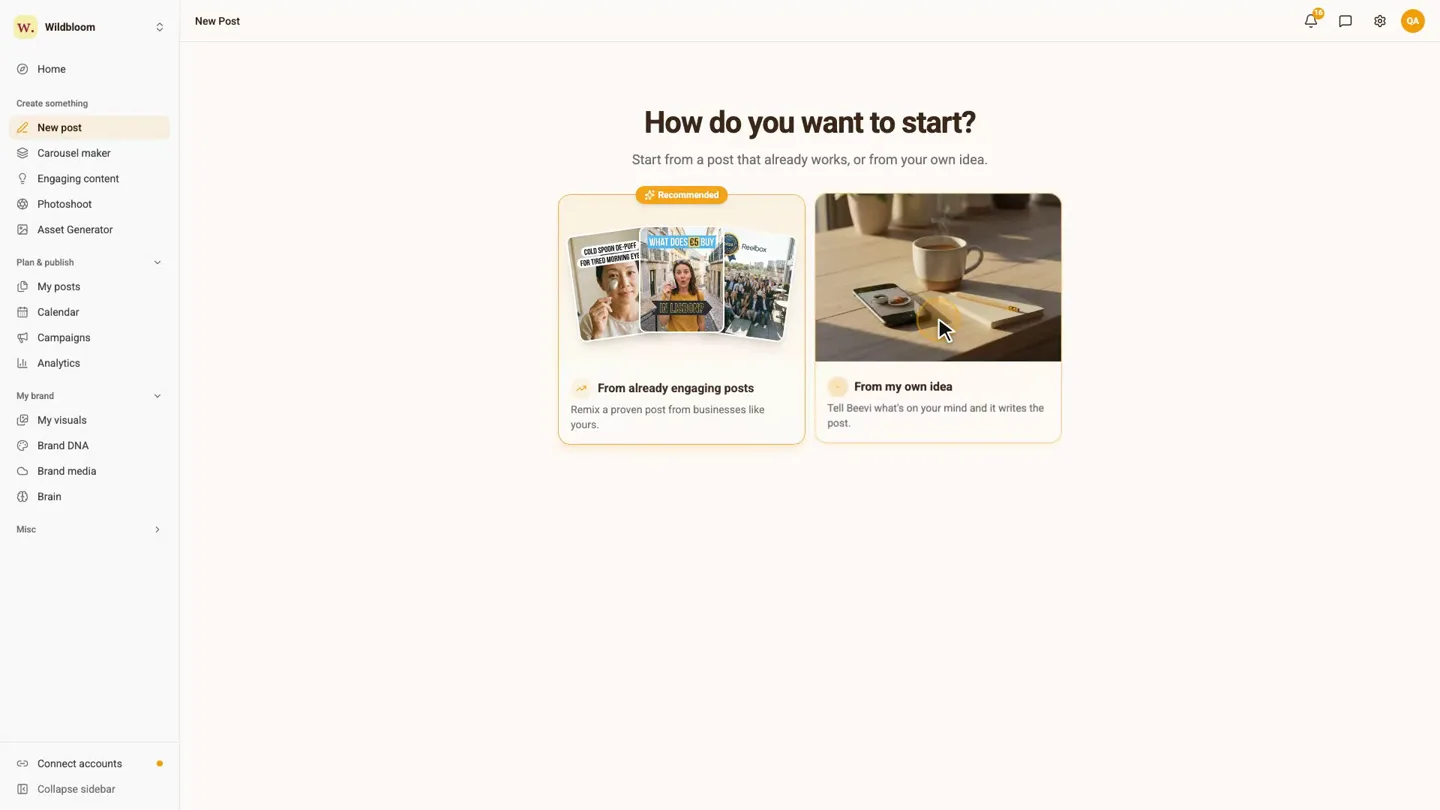
1Open New post
In the menu on the left, under Create something, click New post. Beevi asks how you want to start. Choose From my own idea.
2Describe your idea and tag a product
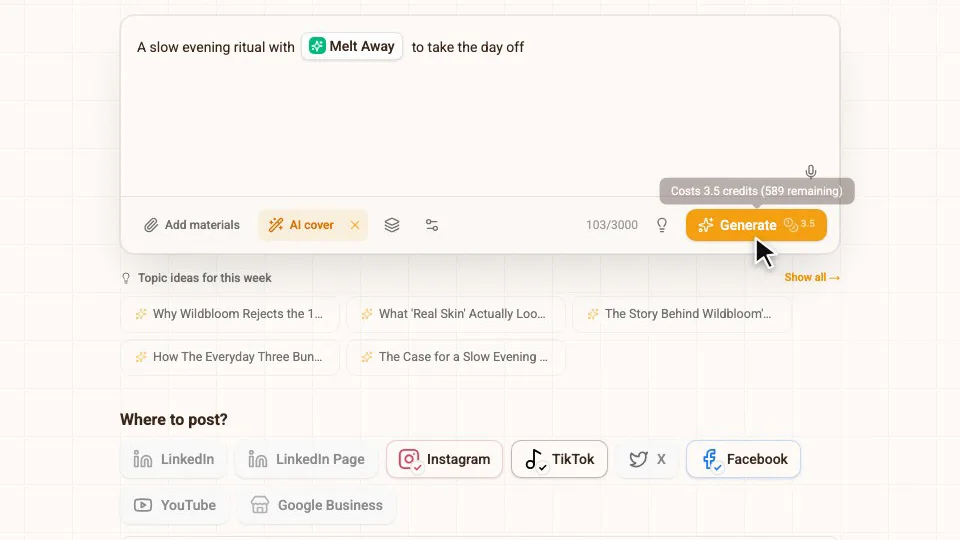
Under What's on your mind?, write what the post is about in a sentence. To feature a product, type @ and pick it from the list. It turns into a tag, and Beevi shows that product in the cover.
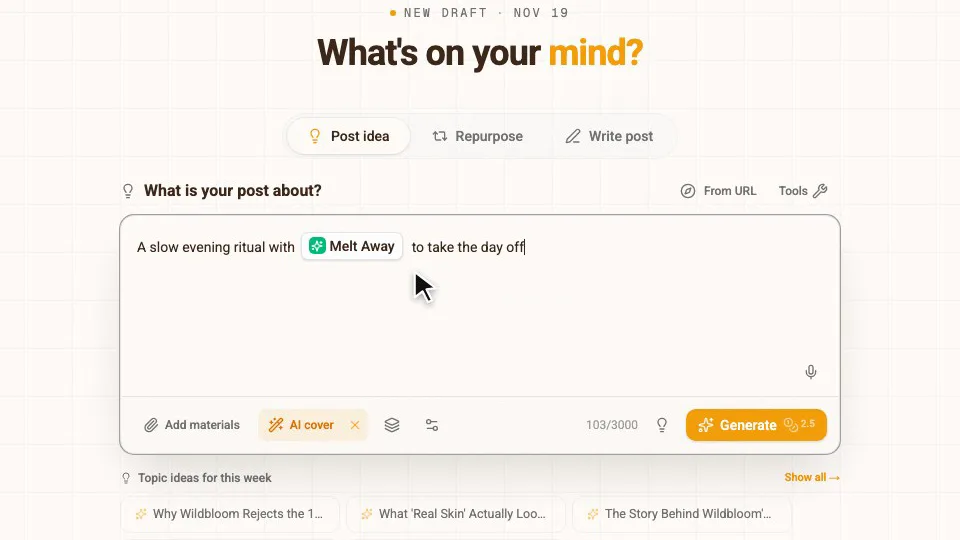
Tip: Have photos or a file about it? Click Add materials and Beevi uses them when it writes the post.
3See where your products come from
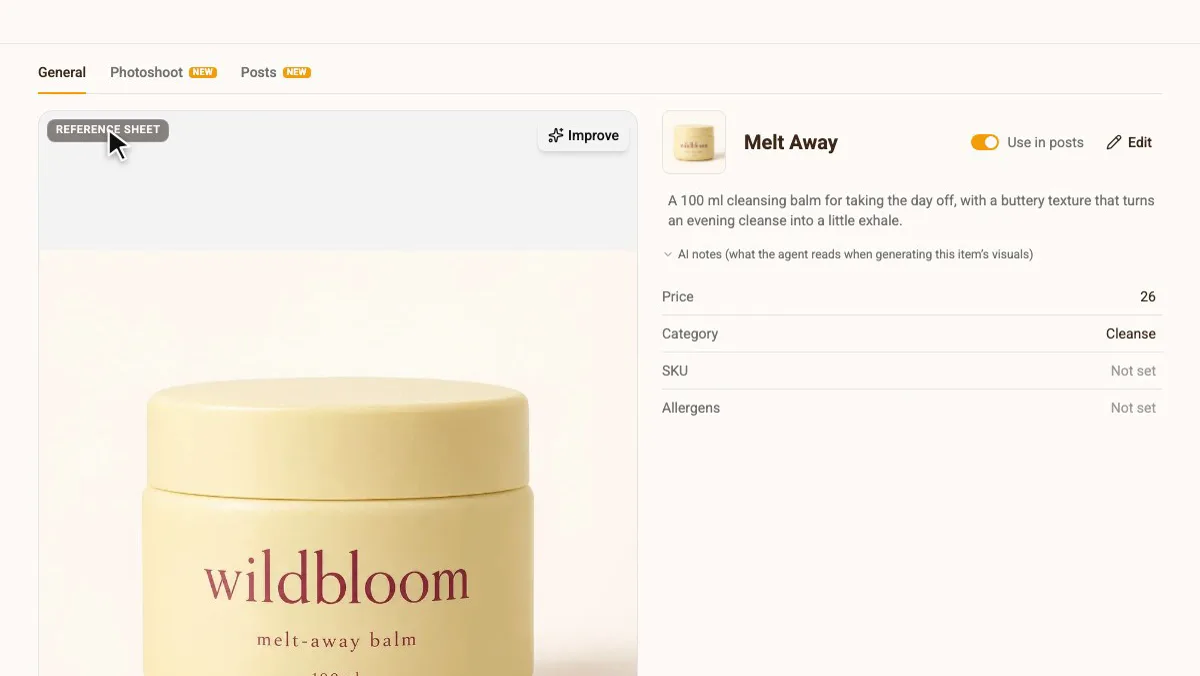
Everything you can tag lives in My visuals, in the menu on the left: your products, your people and your places. Each product has a reference sheet, a clean picture Beevi keeps of it, so the product looks the same in every post. Beevi fills it in from your website and photos when you sign up, and you can add more any time.
4Pick where it goes
Under Where to post?, pick the platforms you want, like TikTok, Instagram and Facebook. Beevi writes a separate caption for each one, so every version fits its platform.
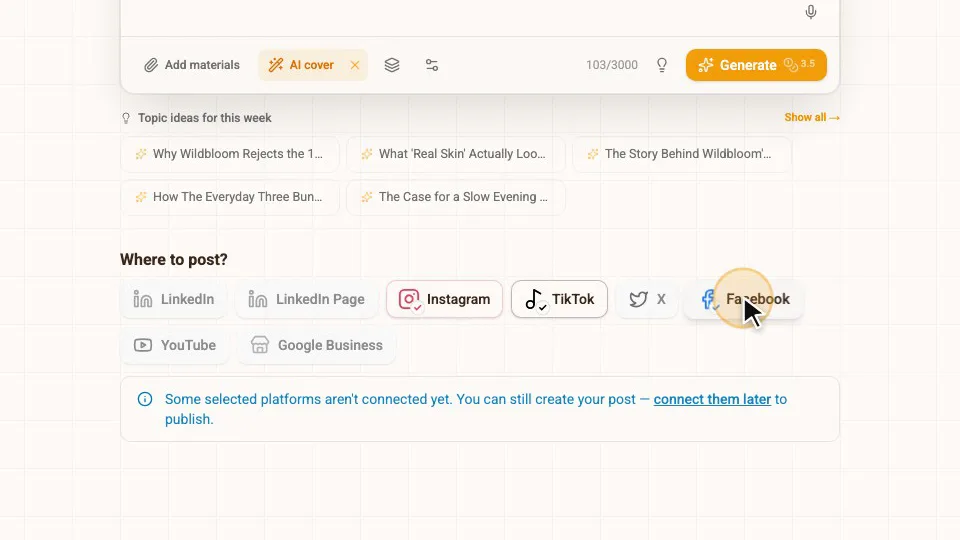
Tip: Not connected yet? You can still make the post and connect your accounts before you publish.
5Click Generate
Click Generate. Beevi writes the captions and makes a cover with your product, then opens the post. You can leave the page while it works. The post waits for you in My posts.
6Check each platform
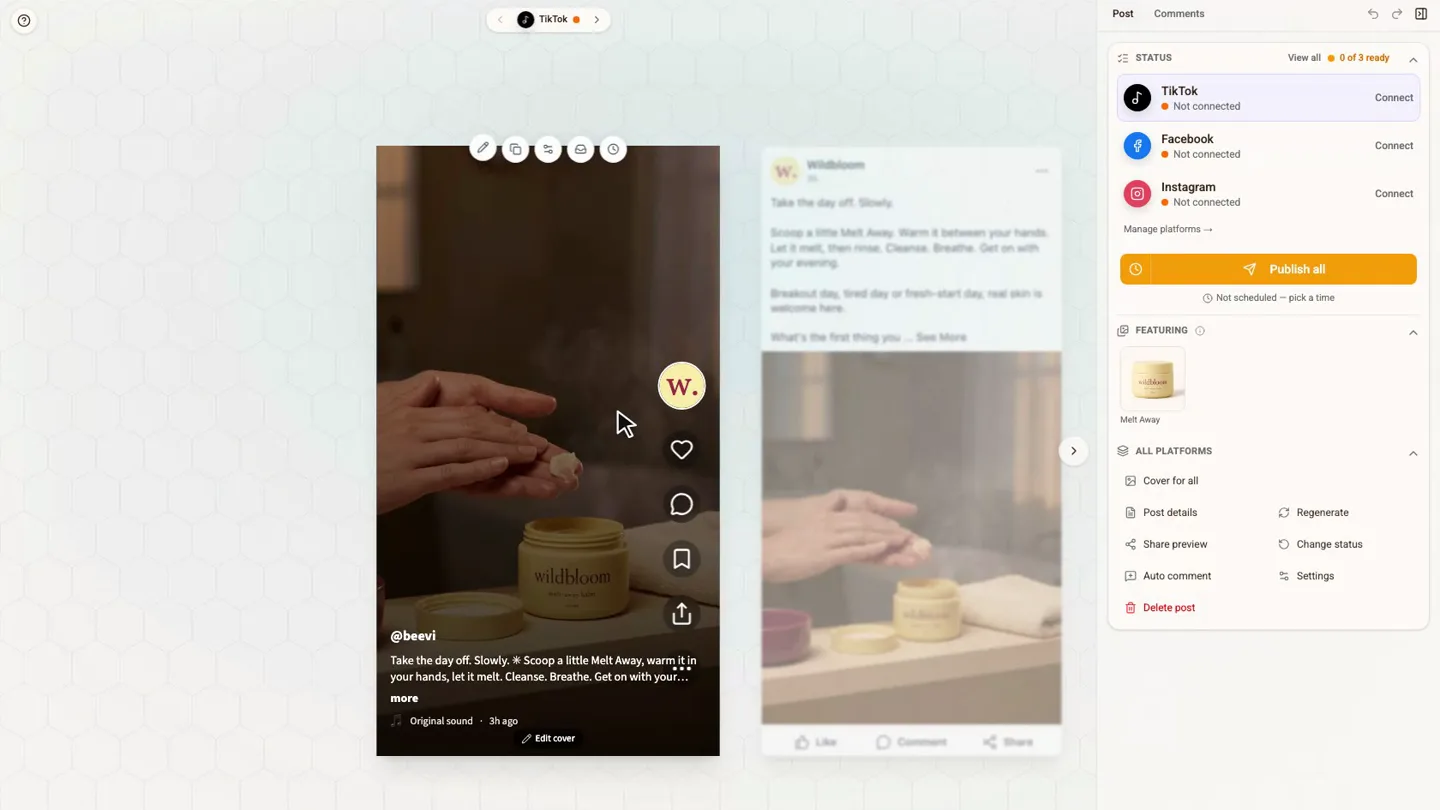
Use the arrows at the top of the post to move between TikTok, Instagram and Facebook. Each one shows how the post will look on that platform, with its own caption. Click the pencil button to change any words.
7Schedule, approve and publish
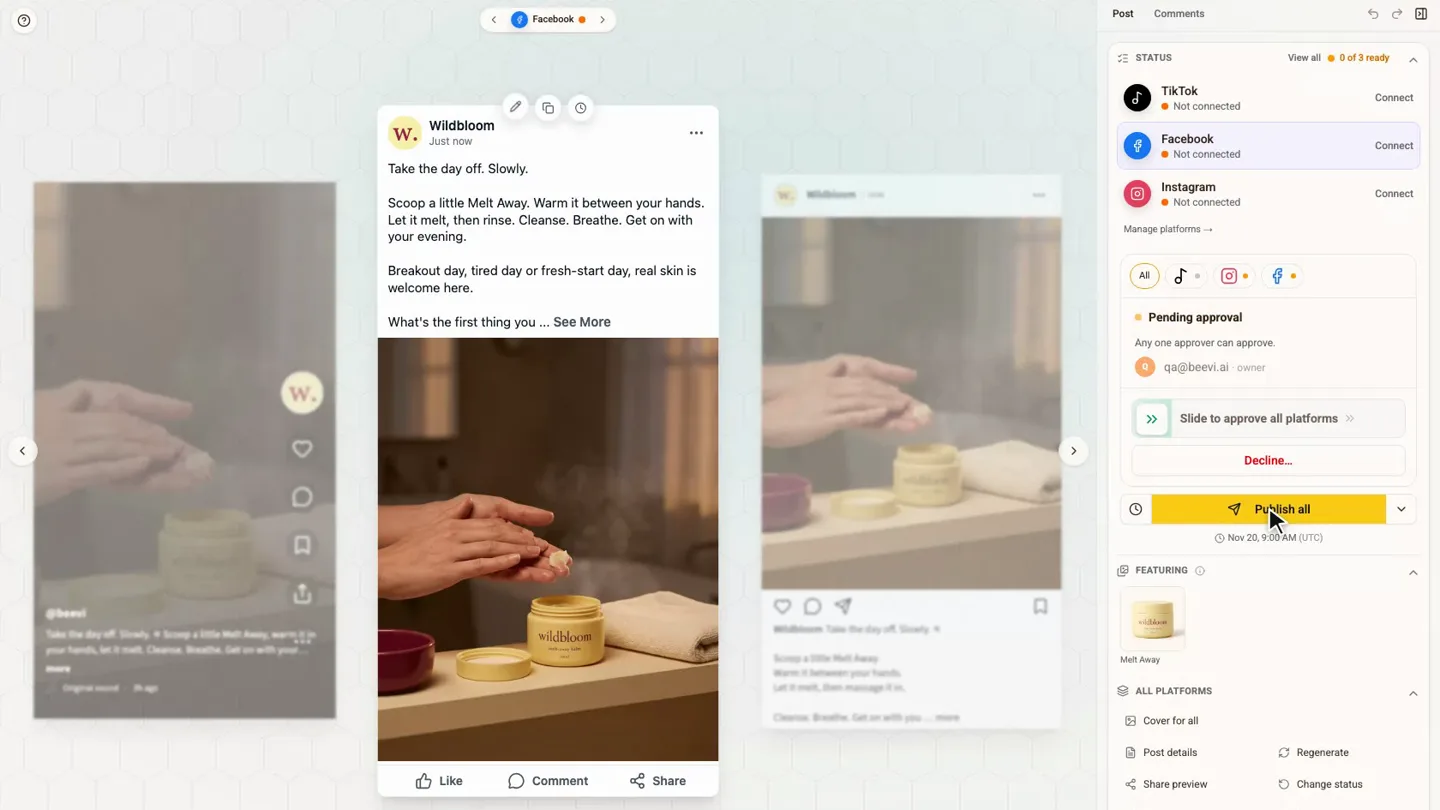
Click the clock button next to Publish all to Schedule post. Beevi suggests the next free slot, or you pick the date and time. To give each platform its own time, or leave one out for now, turn off Same time for all platforms. To post right away, click Publish all. If an account isn't connected yet, Beevi asks you to connect it first. A scheduled post waits for your OK: use Slide to approve all platforms, and Beevi posts it at that time.
Questions
How do I create a social media post with AI in Beevi?
Click New post, choose From my own idea, describe the post in a sentence and tag your product with @, pick your platforms and click Generate. Beevi writes a caption for each platform and makes a cover you can edit.
Can I write the post myself instead?
Yes. Switch to Write post to type your own words and publish them as they are, or to Repurpose to rework a post you paste in or link to.
Will Beevi post anything without my OK?
No. A new post stays a draft until you publish or schedule it yourself, and you can edit every caption and cover before that.
More guides
- ▶ 2:23

Remix a post that already works
How to make engaging social media posts from formats that already work
Your own version of a proven post format
Video + written steps · 7 steps
- ▶ 2:17

Approve a week of posts
How to build a social media content plan that follows the trends
A week of posts, ready for your yes or no
Video + written steps · 5 steps
- ▶ 2:20

Run an AI product photoshoot
How to do AI product photography with your real products
A set of product photos in a few minutes
Video + written steps · 5 steps
- ▶ 2:39

Plan a campaign
How to create a social media campaign with AI, from idea to dated posts
A strategy and a run of dated posts, ready to edit
Video + written steps · 6 steps
- ▶ 1:54

Schedule your posts
How to schedule social media posts to multiple platforms at once
A month of posts on every platform, scheduled
Video + written steps · 6 steps
- ▶ 2:05

Improve a post's cover
How to design social media posts that look right, with AI
A cover you like, on every platform
Video + written steps · 6 steps