How to do AI product photography with your real products
2 min video5 steps
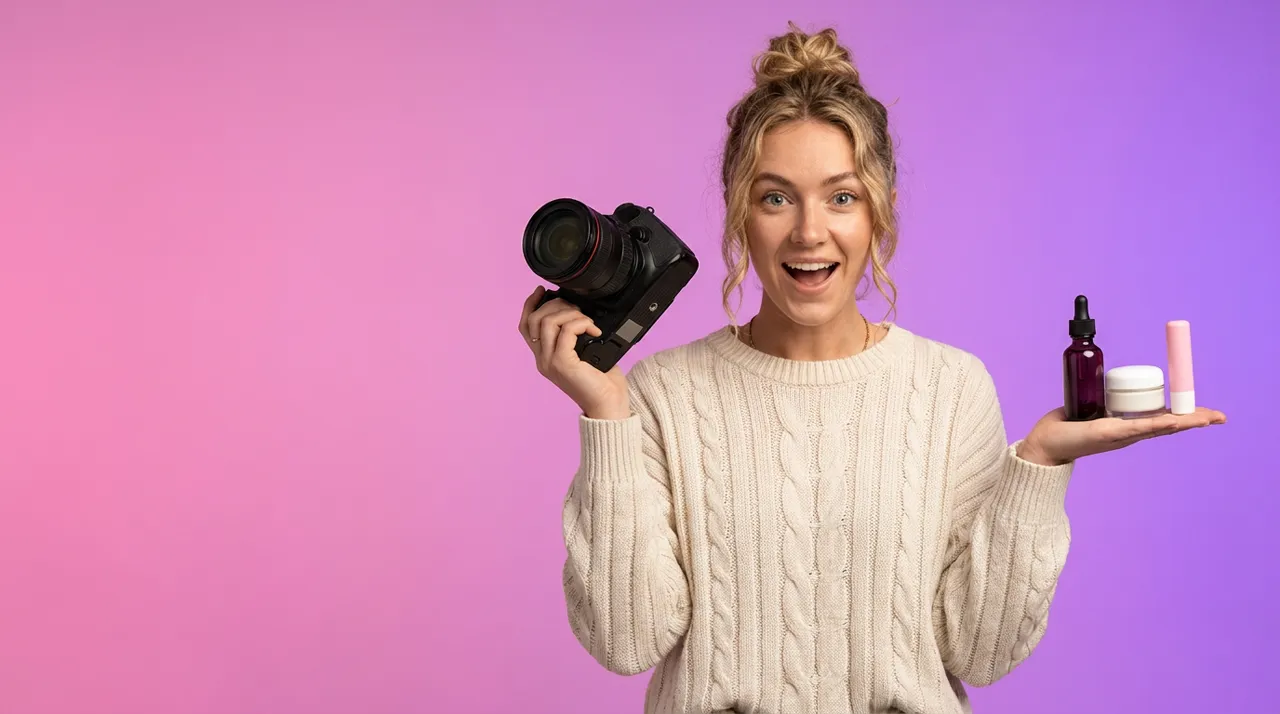
3 products. 1 photoshoot.
With Chloe from Beevi
Click here to see the guided written step by step
How to do it, step by step
No studio and no photographer. Beevi shoots your real products from My visuals, so the packaging and labels stay right.
1Open Photoshoot
In the menu on the left, under Create something, click Photoshoot. Then click Start a new photoshoot.
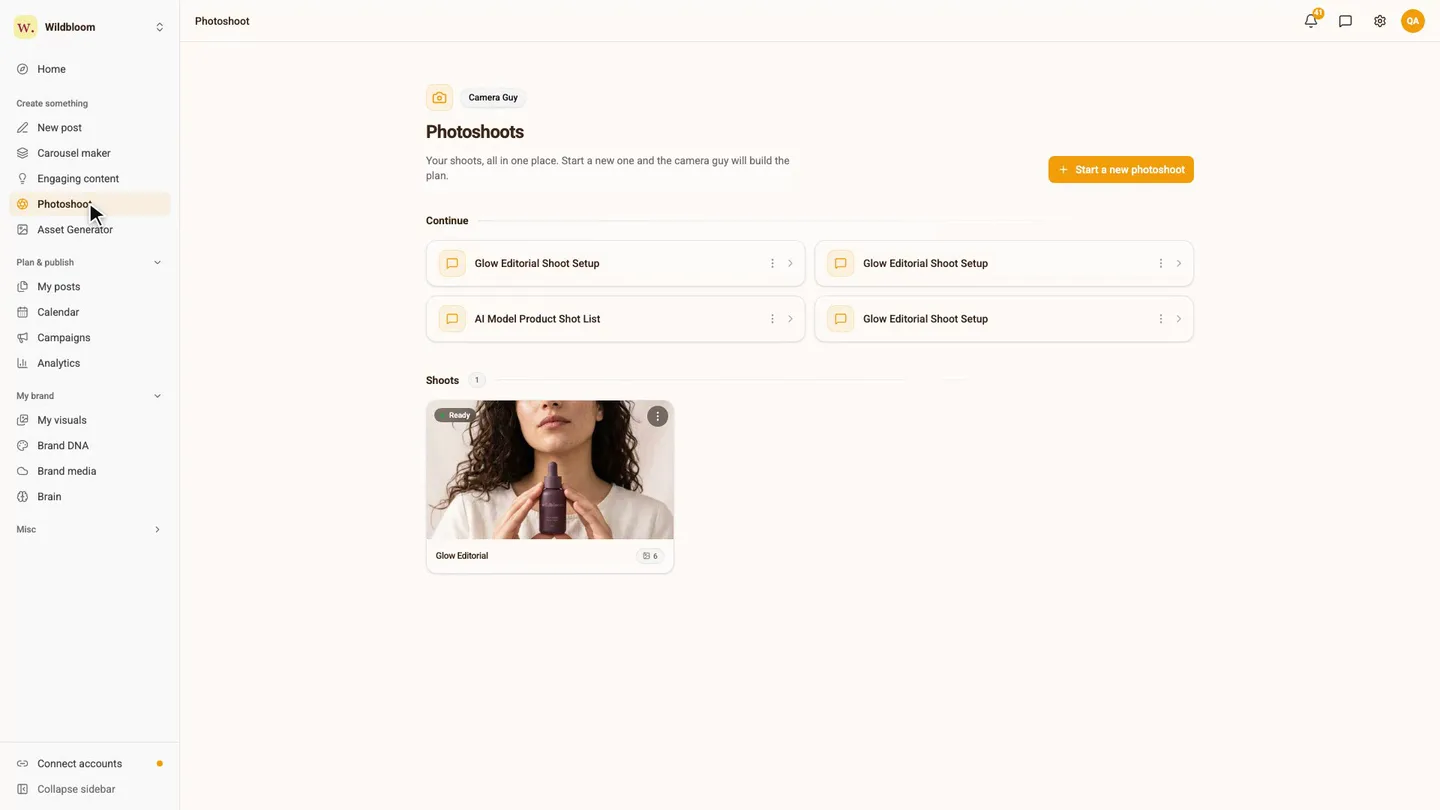
Tip: Your earlier shoots are listed on the same page, so you can go back to any of them.
2Pick a preset and looks
In Pick a preset, choose one that fits your business, like Glow Editorial for Beauty & Wellness, and click Select looks. The preset comes with its looks already ticked, such as Studio Lighting, Pastel Soft and Shallow Depth. You can pick up to 5 looks, and they apply to every shot. Then click Start shoot.
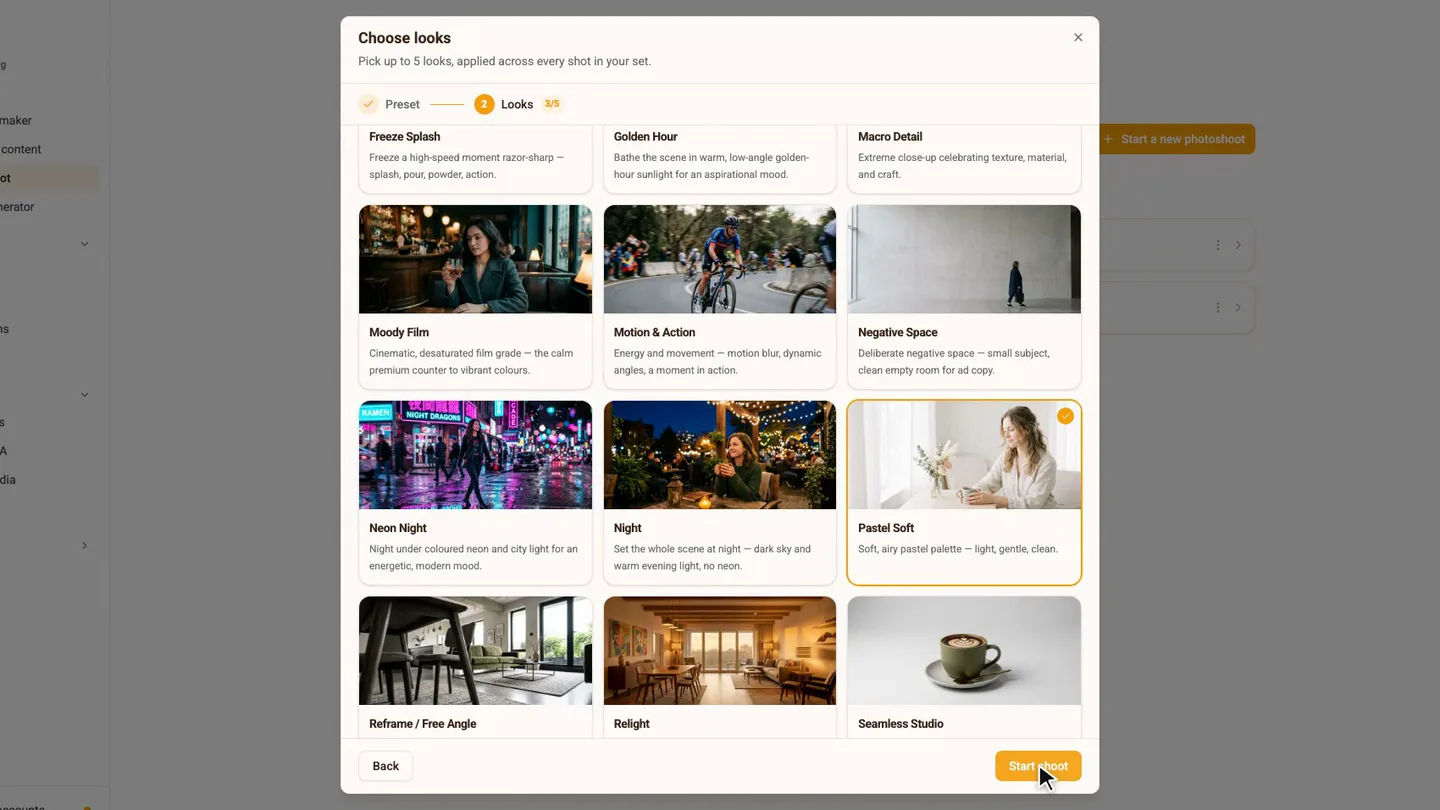
Tip: No preset fits? Click Skip to looks and choose the looks yourself.
3Tell the camera guy what to shoot
A chat opens. The camera guy already knows your products and people from My visuals. He proposes a concept and asks a few questions, like how many shots, models or just the product, which products to feature, and the aspect ratio. Answer in one message: how many photos, which products, and who holds them, a saved person like the founder or AI models he describes. He then writes a shot list: a table with one row per photo and its Concept, Subjects, World and Notes.
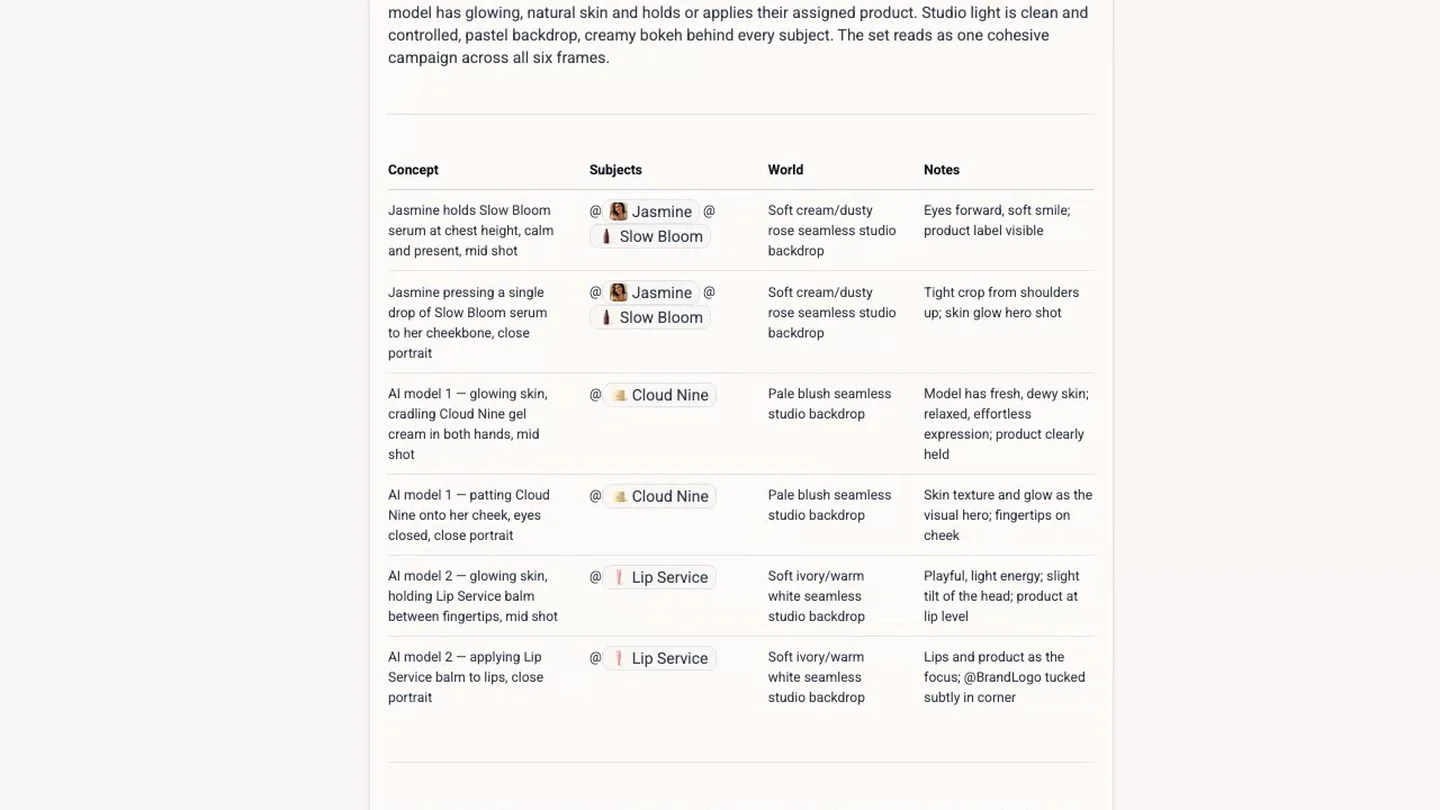
4Check the shot list and start
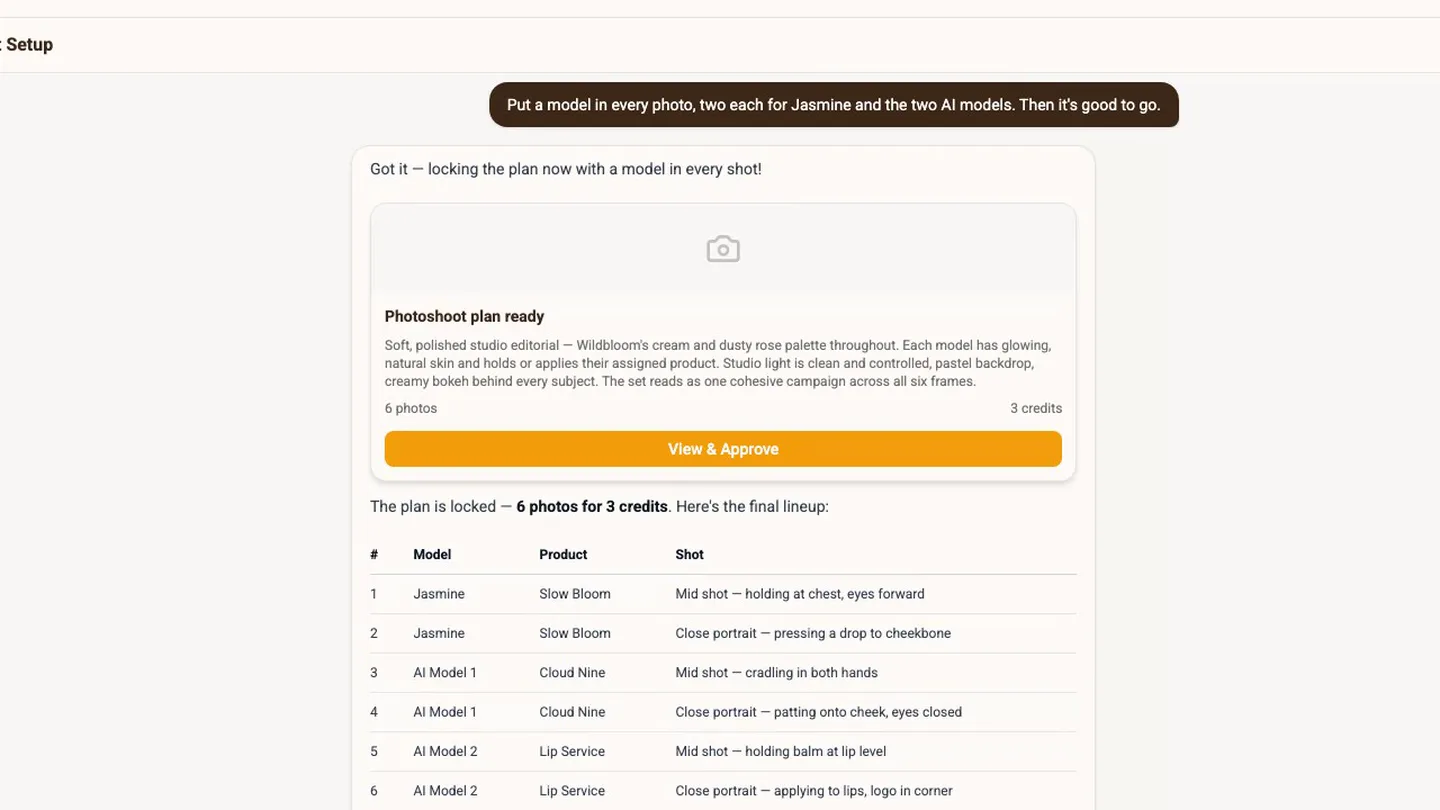
Ask for any change in plain words, like “put a model in every photo”. When the list is right, say so. A Photoshoot plan ready card shows how many photos and how many credits. Click View & Approve to open Review your shot list, where you can read, edit or remove each shot, then click Start shoot.
5Get your photos
The photoshoot page shows each photo as it is shot, marked Shooting or Queued, and in a few minutes the set is ready, like “6 of 6 photos ready”. Click a photo to open it and use the arrows to browse. From there you can click Edit image, Download or Open in library. On the page itself, Download gets every photo at once, Share shares the whole shoot, and Add photos adds your own images to it.
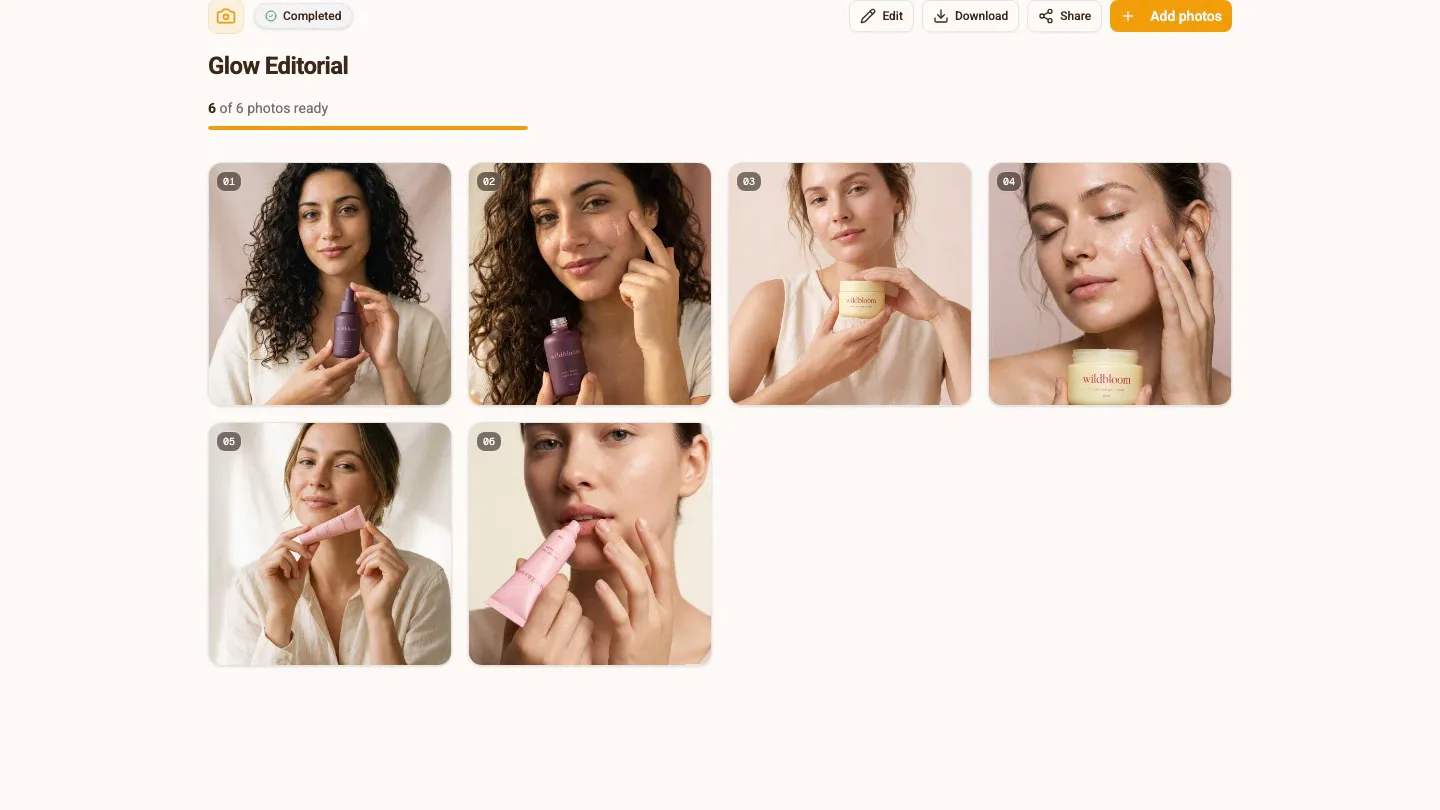
Tip: Every photo is saved to your brand media, so you can use it in any post.
Questions
How does AI product photography work in Beevi?
Beevi keeps a reference sheet of each product in My visuals: a clean picture of it. The camera guy plans the shots with you in a chat, and every photo is made from that real product, so its shape, colors and label stay right.
Can people be in the photos?
Yes. Ask for a person you saved in My visuals, like the founder, or ask for AI models and the camera guy describes them in the shot list.
How many credits does a photoshoot use?
It depends on how many photos you ask for. The Photoshoot plan ready card and the Review your shot list window show the credits before you click Start shoot.
More guides
- ▶ 2:23
Remix a post that already works
How to make engaging social media posts from formats that already work
Your own version of a proven post format
Video + written steps · 7 steps
- ▶ 2:17
Approve a week of posts
How to build a social media content plan that follows the trends
A week of posts, ready for your yes or no
Video + written steps · 5 steps
- ▶ 2:19
Create a post from an idea
How to create a social media post from one idea, with AI
A post for each platform, from one sentence
Video + written steps · 7 steps
- ▶ 2:39
Plan a campaign
How to create a social media campaign with AI, from idea to dated posts
A strategy and a run of dated posts, ready to edit
Video + written steps · 6 steps
- ▶ 1:54
Schedule your posts
How to schedule social media posts to multiple platforms at once
A month of posts on every platform, scheduled
Video + written steps · 6 steps
- ▶ 2:05
Improve a post's cover
How to design social media posts that look right, with AI
A cover you like, on every platform
Video + written steps · 6 steps