
How to build a social media content plan that follows the trends
2 min video5 steps

6 posts. You say yes or no.
With Chloe from Beevi
Click here to see the guided written step by step
How to do it, step by step
Every week, Beevi plans posts from what's trending in your niche, formats that already work and your content strategy. You just say yes or no.
1Open your Compass
In the menu on the left, click Home. Home is your Compass. Under Ready for your review are this week's posts, each shown as it will look on Instagram or Facebook. Click the dots under a post to flip through them.
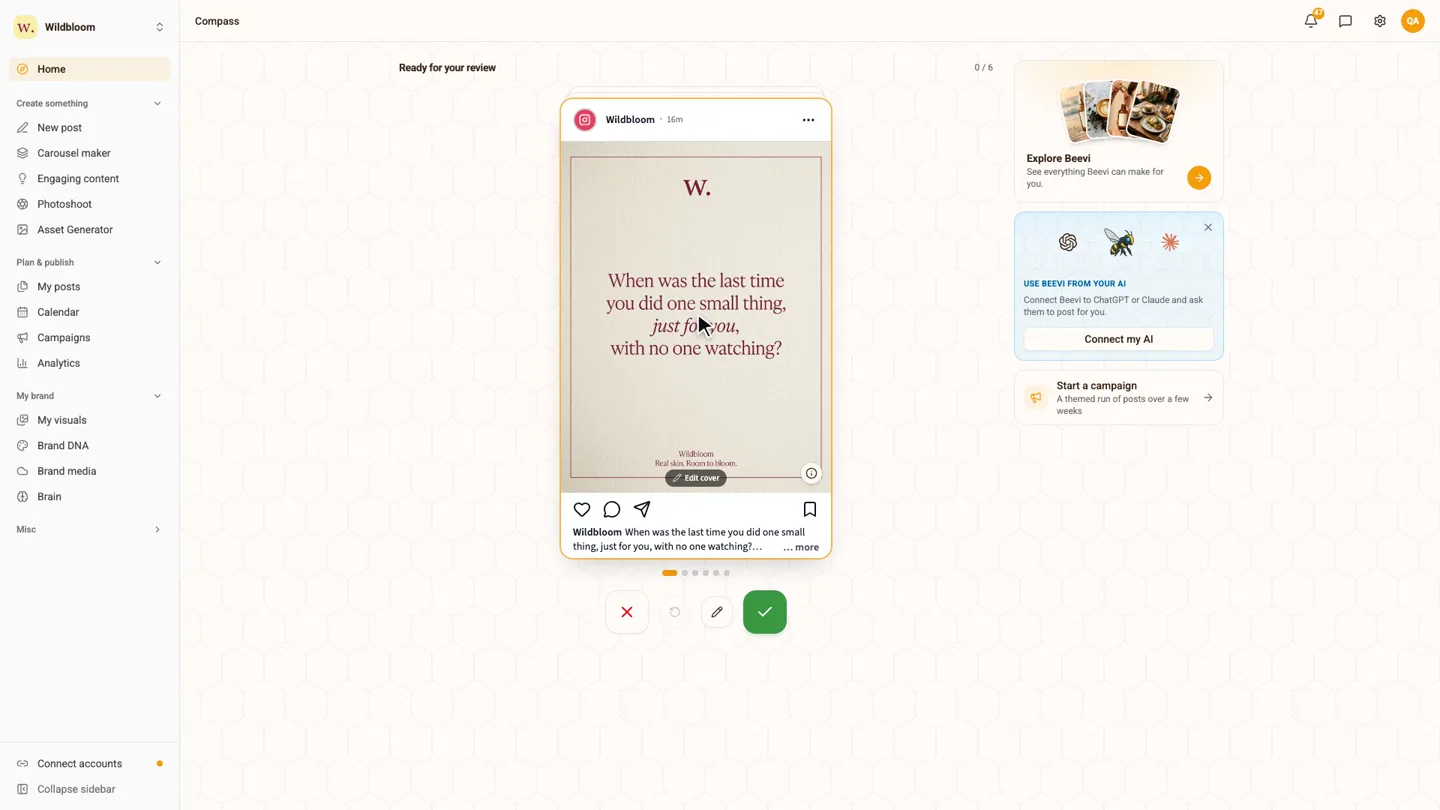
Tip: The counter at the top, like 0 / 6, shows how many posts you've reviewed.
2Read your weekly summary
Click the chat icon at the top right. A new chat opens with your weekly summary, like This week: 8 trends in your niche: what people are searching for and what's in the news in your field. Click See all trends to open This week's trends, with Search trends and Worth knowing.
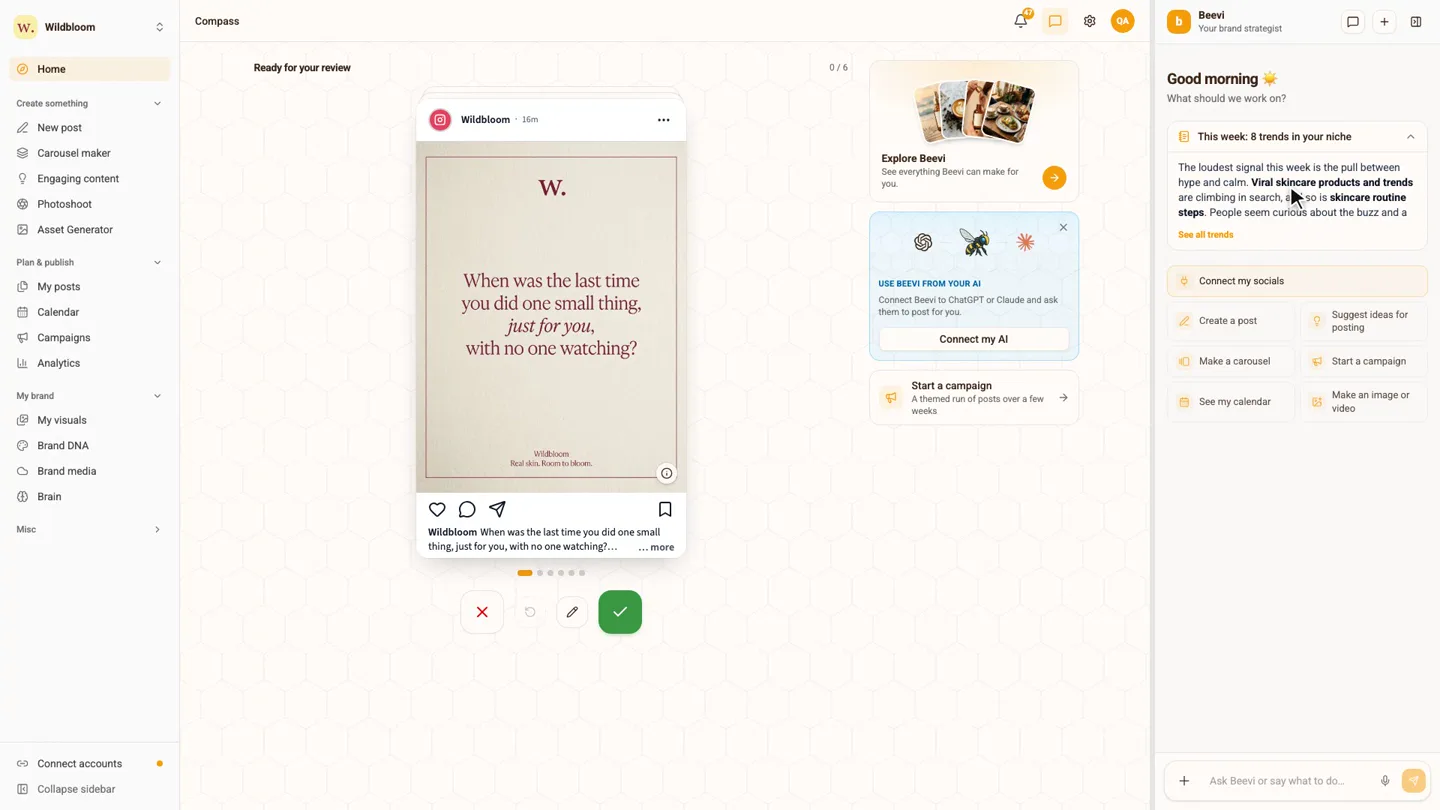
Tip: Every trend has Create post and Talk about this, so you can turn one into a post yourself.
3See where each post comes from
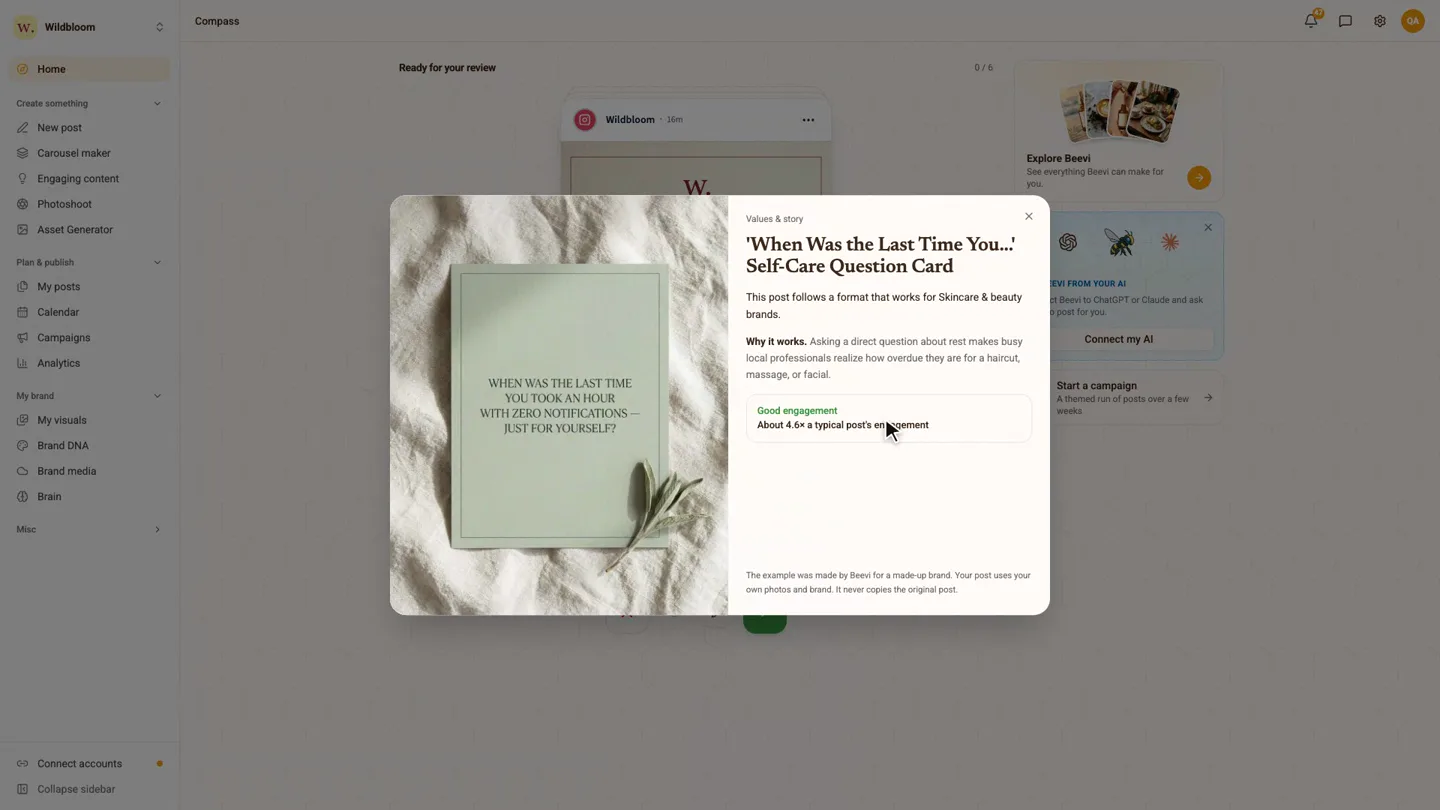
Every post has a reason. Some follow a format that already works in your niche: click the ⓘ on the cover to see why it works and how well it did. Some ride a trend from this week, like a search that is rising. Others follow your content strategy, like posts in the founder's own voice.
4Approve and schedule
Like a post? Click the check, or swipe the post to the right. Schedule this post opens with a time Beevi picked from your posting schedule. Click Schedule for … to book it, or Change to pick another time. Not ready yet? Click Save as draft, or Edit first to change the post before it goes out.
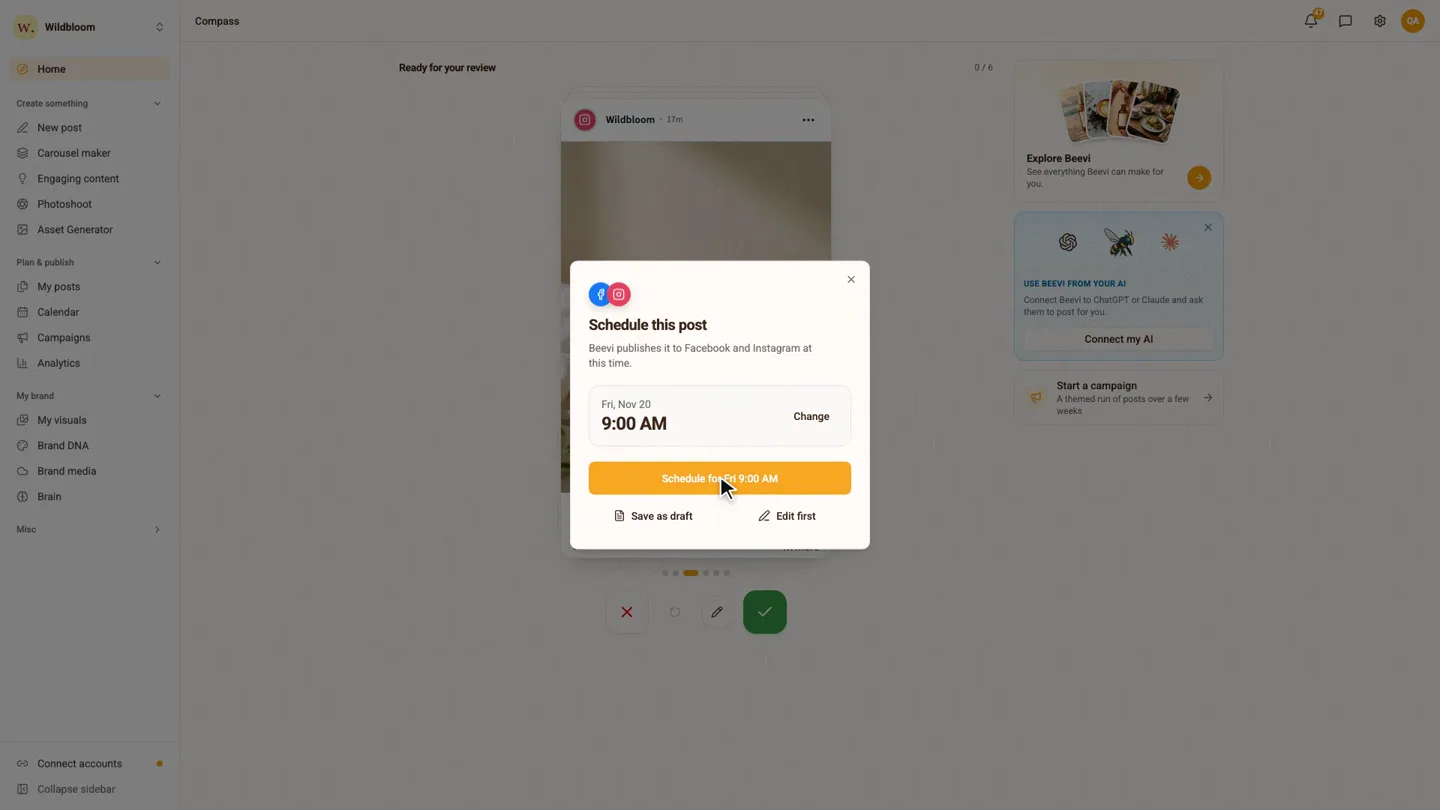
Tip: If a social account isn't connected yet, Beevi asks you to connect it so the post can go out.
5Skip with a reason
Not for you? Click the X, or swipe the post to the left. Why skip this post? asks for a reason: I don't like the photo, I don't like the caption, I don't like the content or Other. Pick one and click Skip post. Beevi won't plan a topic you skipped again, and your answers help it make better posts.
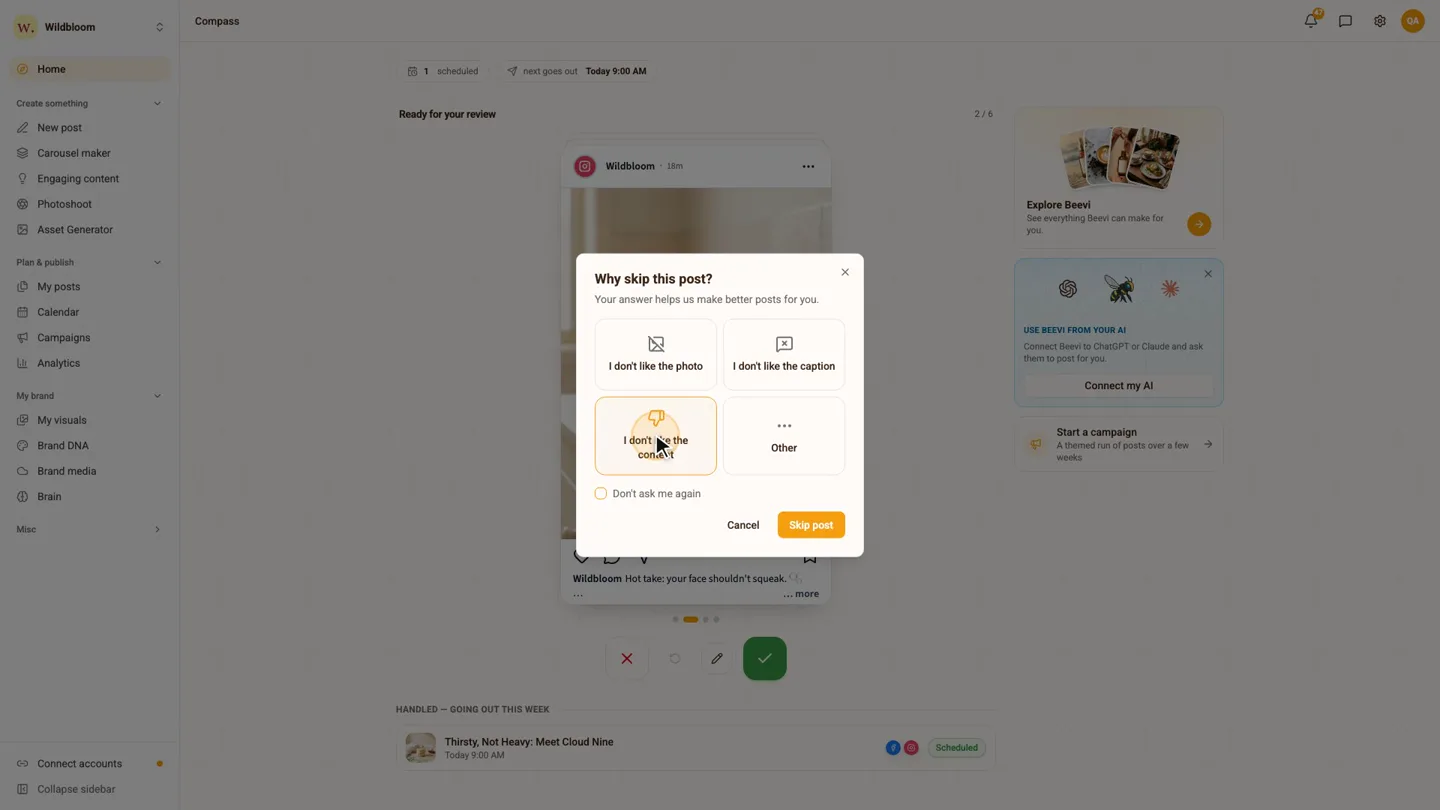
Tip: Skipped one by mistake? Click undo right away to bring it back.
Questions
Does Beevi post without asking me?
No. Compass posts wait under Ready for your review until you approve them, and you choose when they go out.
How do I get posts every week?
When you set up Beevi, answer Yes, every week to Should Beevi draft new posts for you every week? You can turn it on or off later in Workspace settings, under Weekly Compass. Weekly posts use credits, and Beevi shows the weekly cost before you turn them on.
What happens when I skip a post?
Beevi saves your reason and won't plan a topic you skipped again. Posts you approve count too, so the next weeks don't repeat them.
More guides
- ▶ 2:23

Remix a post that already works
How to make engaging social media posts from formats that already work
Your own version of a proven post format
Video + written steps · 7 steps
- ▶ 2:19

Create a post from an idea
How to create a social media post from one idea, with AI
A post for each platform, from one sentence
Video + written steps · 7 steps
- ▶ 2:20

Run an AI product photoshoot
How to do AI product photography with your real products
A set of product photos in a few minutes
Video + written steps · 5 steps
- ▶ 2:39

Plan a campaign
How to create a social media campaign with AI, from idea to dated posts
A strategy and a run of dated posts, ready to edit
Video + written steps · 6 steps
- ▶ 1:54

Schedule your posts
How to schedule social media posts to multiple platforms at once
A month of posts on every platform, scheduled
Video + written steps · 6 steps
- ▶ 2:05

Improve a post's cover
How to design social media posts that look right, with AI
A cover you like, on every platform
Video + written steps · 6 steps